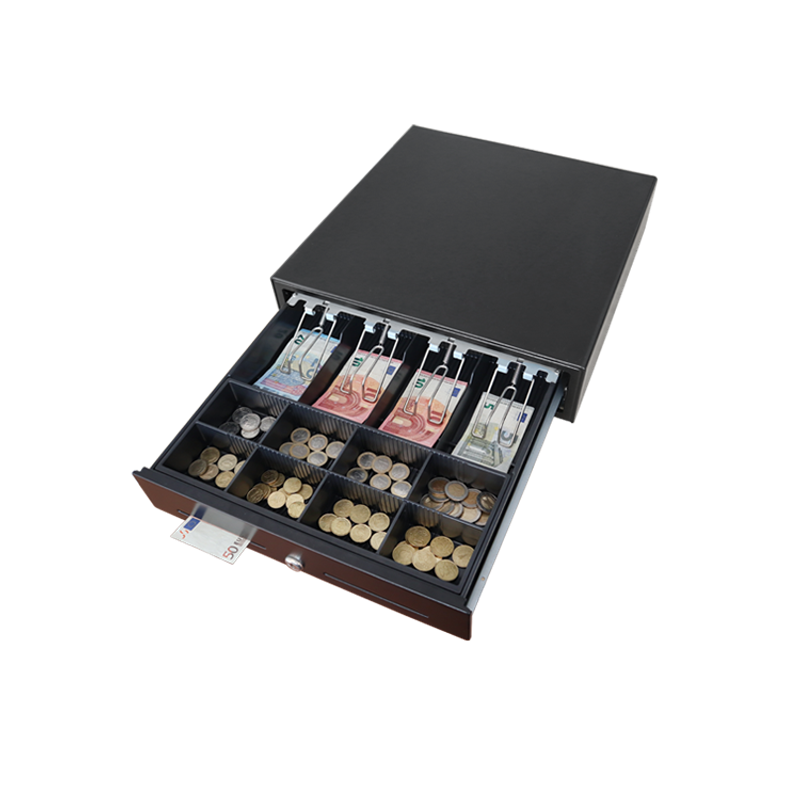
This guide covers connecting an RJ11 or RJ12 cash drawer to a receipt printer and setting the Windows printer driver to open the drawer automatically when a receipt prints. The exact menu names vary by printer model, but the connection and test process is broadly the same.
Before you start
- A receipt printer with a dedicated RJ cash drawer port.
- A cash drawer with the correct RJ11 or RJ12 kick cable for the printer.
- The receipt printer driver installed on the POS computer.
- Check the cash drawer's documentation or cable pinout for its kick pin and voltage before changing the driver settings. Using the wrong pin or voltage can stop the drawer opening and may damage the solenoid.
Connect the cash drawer
- Power off the receipt printer.
- Locate the dedicated cash drawer port on the back of the printer. Do not use a network or telephone socket that happens to look similar.

- Push the cash drawer cable firmly into the port until it clicks into place.
- Power the printer back on.
Configure the printer driver
- In Windows, open Devices and Printers and find the installed receipt printer.
- Right-click the printer and select Printing Preferences.
- Open the Peripherals tab, then choose Cash Drawer from the peripheral list.
- Under Start of Document, set Cash Drawer #1 (2 pins), Cash Drawer #2 (5 pins), or both to Open, according to the drawer's kick cable and voltage specification.

- Select Operation Check to confirm that the drawer opens, then select Apply and OK.
Test the setup
- Print a test receipt from the POS system.
- Confirm that the cash drawer opens automatically when the receipt prints.
If that didn't work
- Power off the printer and check that the drawer cable is fully seated in the dedicated cash drawer port at both ends.
- Repeat Operation Check in the printer driver. If this works but a POS receipt does not, check the drawer-open setting in the POS application.
- Confirm that the enabled kick pin and voltage match the cash drawer's cable pinout. Do not keep trying different combinations without checking the drawer specification.
- If the driver has no Peripherals or Cash Drawer option, install the full manufacturer driver package or ask the printer supplier for the correct utility.
When to raise a ticket
If the drawer still will not open, raise a ticket at /support/ticket with the printer and cash drawer models, both serial numbers, the POS software name, and a screenshot of the driver settings. Include whether Operation Check opens the drawer.