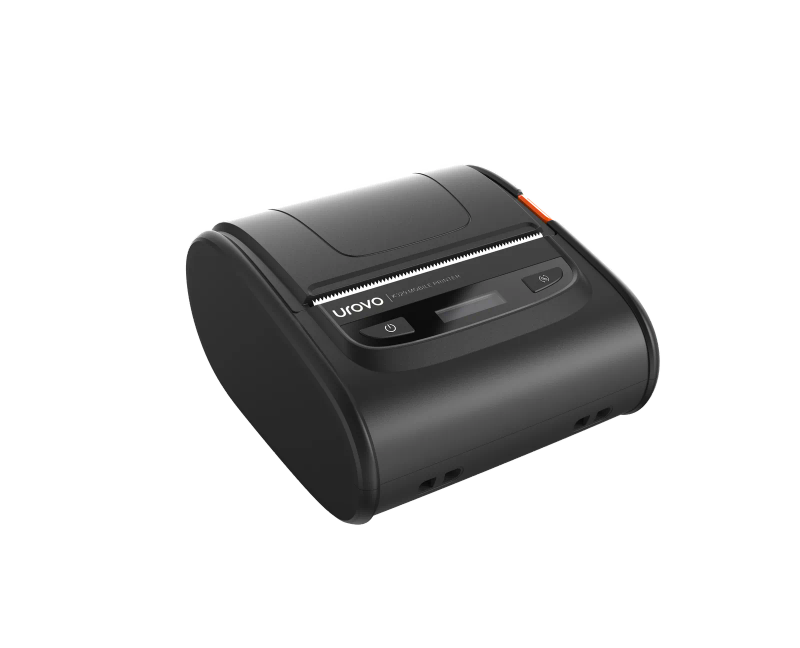
The Urovo K329 is a Bluetooth thermal receipt printer that pairs with Windows like any other Bluetooth device — but pairing alone gets you a generic device entry that Windows can't actually print to. To print, you need to install the Urovo-supplied Seagull Scientific driver pack and bind it to the paired device. The procedure below walks through the full install on Windows 10 and 11, end to end.
Before you start
- Get the Urovo driver pack. It's distributed as a ZIP called Urovo_2021.1_M-5 from the Urovo support site — or request it from us at support@ioresource.com if you can't locate it.
- Switch the K329 on and put it in pairing mode. Most units are discoverable as soon as they power on; a slow-flashing Bluetooth LED is the giveaway.
- Sign in to Windows as a user with admin rights — the install needs to elevate twice (driver install and printer-port creation).
Step 1 — Run the driver installer
- Unzip the Urovo_2021.1_M-5 archive and run the installer inside.
- Accept the Seagull Scientific license agreement and click Next.

- Pick an install directory (the default is fine in almost every case) and click Next.

- Leave both checkboxes ticked on the final installer screen and click Finish.

- When Windows asks whether to allow the app to make changes to your device, click Yes. Saying No here aborts the install silently.
Step 2 — Pair the K329 over Bluetooth from inside the wizard
After Finish, the Urovo installer hands off to the Seagull Driver Wizard, which is the part that actually creates the Windows printer entry.
- In the Seagull Driver Wizard, choose Install printer drivers and click Next.
- Select Bluetooth as the connection type, then click the Add Device Wizard… button next to it.

- Wait for Windows to discover the K329. The K329 will show up as a device named like K329_xxxx where xxxx is the last four digits of the serial. Select it and click Next.

- When prompted for a pairing passcode, enter 0000 (four zeros). That is the default — the K329 ships with no custom code unless someone has already programmed one.

- Click Next. Windows pairs the device, installs the Bluetooth virtual port, and returns you to the Seagull Driver Wizard.
Step 3 — Bind the driver to the printer
- Back in the Seagull Driver Wizard, click Next. The wizard searches for printers and should find the freshly-paired K329 on its new Bluetooth virtual port. Select it and click OK.

- When the wizard asks you to specify the model, select the correct K329 entry and click Next.

- At the Specify Port step, just click Next. The wizard has already chosen the correct virtual port created during pairing.

- At the printer-name step, leave the default name in place. Decide whether to share the printer on the network and click Next.

- Click Finish on the summary screen, then Close on the final dialog.


Step 4 — Verify in Windows Settings
Open Settings → Bluetooth & devices → Printers & scanners. You should see two entries that both look like the K329:
- One named like K329_xxxx with `Driver is unavailable` underneath it. That's the raw Bluetooth pairing — leave it alone, don't print to it.
- One named Urovo K329 (or whatever you set in the wizard). That one has the driver bound. This is the entry to print to.

Print a Windows test page from the Urovo K329 entry to confirm. A clean test page out of the K329 means the install is complete.
If that didn't work
- If the Bluetooth pairing fails with a passcode error, the K329 may already have a non-default passcode programmed. Reset the printer to factory defaults (consult the K329 manual) and try again.
- If the Add Device Wizard never shows the K329, confirm Bluetooth is on in Windows, the K329 is powered on and discoverable, and there's no other paired host (a phone, another PC) holding the connection.
- If the Seagull wizard finishes but no Urovo K329 entry appears in Printers & scanners, the install elevation was probably refused. Re-run the installer as administrator (right-click → Run as administrator) and walk the wizard through again.
- If Windows shows only the yellow Driver-is-unavailable entry, you stopped at the Bluetooth pairing step and never ran the Seagull Driver Wizard. Open the Urovo installer again and complete the wizard.
When to raise a ticket
If the install completes cleanly and the test page still won't print, raise a ticket at /support/ticket with the K329 serial number, the Windows version, and a screenshot of the Printers & scanners panel showing both entries.