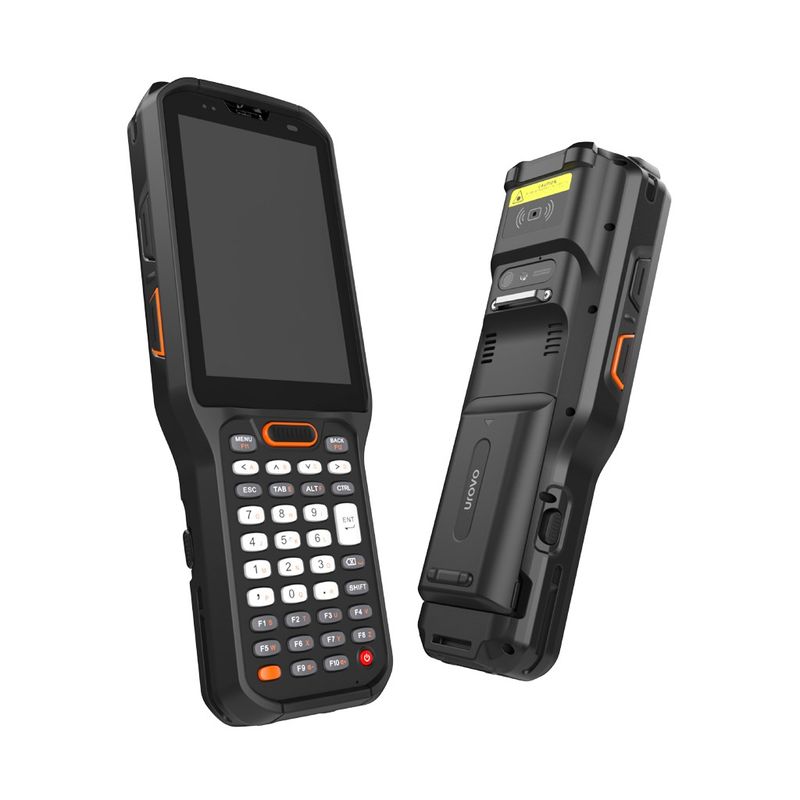
Android Recovery on the Urovo RT40 (and the closely-related RT40s and DT40) is the menu you go to when you need to factory-reset a stuck device, wipe the cache partition after a bad update, or apply an OTA package over ADB or SD card. Urovo guards entry with a short key sequence so a user can't reach it accidentally.
Before you start
- Have the device charged. The recovery menu has no battery indicator and a flat device mid-wipe is a bricked device.
- Know which Android version the unit is running (Settings → About phone → Android version). The key sequence differs between Android 9/10 and Android 11.
- Decide what you actually want to do in recovery. Wipe data / factory reset deletes everything — including any MDM enrolment — and the device will need re-staging.
Step 1 — Reboot into the recovery prompt
- Press and hold the power key on the side of the device until the power menu appears, then tap Restart.
- As the device shuts down, hold Volume+ down. Keep holding it through the restart.
- Release the power key as soon as you feel a vibration from the device. Keep Volume+ held.
- If you've timed it right, the screen shows `Supported API: 3` and `Press power key to reboot system`. That's the unlock screen, not Recovery itself.

Step 2 — Unlock the recovery menu
From the unlock screen, tap the volume keys in the exact sequence below. Press each key cleanly — too fast and the device misses presses; too slow and it times out and reboots. Aim for roughly one press per second.
On Android 9 or 10:
- V+ V- V+ V- V+ V+ V- V- ( + - + - + + - - )
On Android 11:
- V+ V+ V- V- V+ V- V+ V+ V+ V+ V- V- V- V- ( + + - - + - + + + + - - - - )
The Android 11 sequence is longer and easier to fluff — type each press deliberately. If the device reboots normally instead of opening Recovery, you missed a key; start again from Step 1.
Step 3 — Use the recovery menu

Once the orange-on-black Android Recovery menu appears, navigation works differently from a normal Android touchscreen — touch input is disabled in this mode.
- Volume up and Volume down move the highlight bar up and down through the menu.
- Power confirms the highlighted choice.
Common entries on the RT40/DT40 recovery menu:
- Reboot system now — back to normal Android.
- Apply update from ADB — for sideloading an OTA from a connected PC.
- Apply update from SD card — for sideloading from a microSD.
- Wipe data / factory reset — full reset; erases user data and MDM enrolment.
- Wipe cache partition — keeps user data, clears the system cache. Often resolves boot loops after a bad app update.
If that didn't work
- If the device just boots normally after Step 1, you released Volume+ too early — keep it held until the screen explicitly shows the unlock prompt.
- If the unlock screen never appears and the device is stuck on the Urovo logo, you have a different problem (corrupted bootloader or storage). Try a forced power-off (hold Power for 15 seconds) and then start over.
- If the recovery menu opens but Volume keys don't move the highlight, the device may have a stuck volume button — usually fixable by removing the screen protector or cleaning around the button.
When to raise a ticket
If you can't enter Recovery on a device that you know was working previously — and a forced power-off doesn't help — raise a ticket at /support/ticket with the device serial number, the Android version, and a short description of what happens at each step.